 protégé
Setting up Protégé
About 15 minutes the first time, mostly waiting for Gloam's brain to download. You need a Windows or Mac laptop the school lets you use for student work (ideally one your board manages, see running Protégé for a school). Students don't install anything.
1. Download it
Download Protégé Or: Windows, Mac
Protégé runs on the teacher's laptop, Windows 10 or 11, or a Mac. Chromebooks are for students: they join from the browser with a class code.
2. Install it
On Windows, open Protege-Setup.exe from your downloads and press Install. It installs for you only, so you don't need admin rights.
Protégé is free, so it isn't paid-signed by Microsoft. The first time, Windows may stop it with a blue box. Choose More info, then Run anyway:
Windows protected your PC
Microsoft Defender SmartScreen prevented an unrecognized app from starting.
More info
On a Mac, open Protege.dmg and drag Protégé into Applications. Then open it from Applications.
Protégé is free, so it isn't paid-signed by Apple. The first time, your Mac says it can't check it. Press Done, then open System Settings → Privacy & Security, scroll down, and press Open Anyway:
Security
"Protégé" was blocked to protect your Mac.
3. Gloam wakes up
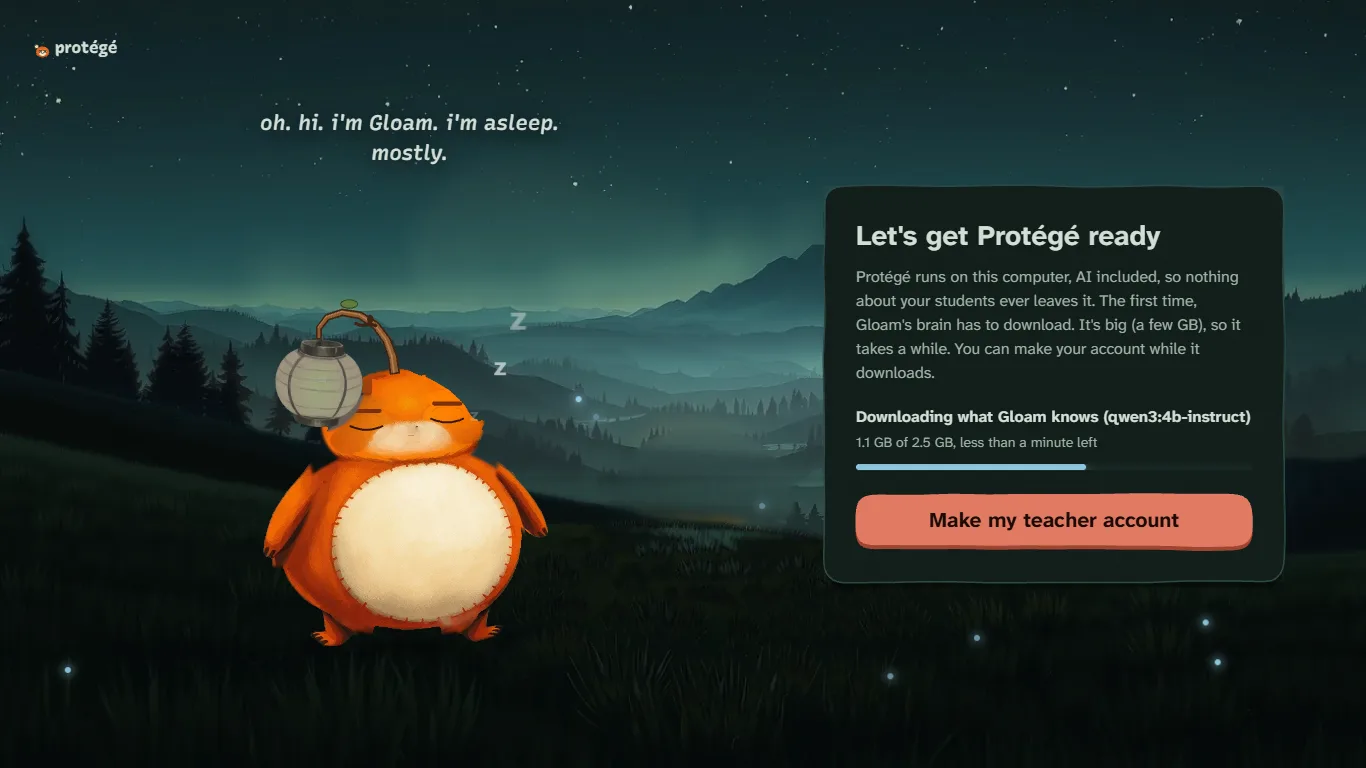
Protégé opens in your browser and sets itself up: it installs Ollama (the free program that runs Gloam's AI on your laptop) and downloads Gloam's brain (a few GB, once). It tells you how long is left. You can make your teacher account while it downloads, and do other things meanwhile.
- Save your recovery code. It's how you get back in if you forget your password (Protégé doesn't send emails).
- Voices (optional, about 850 MB): Protégé asks if you want them. Students can then talk to Gloam instead of typing (their voice is turned into words on your laptop and never saved), and read-aloud uses Gloam's natural voice instead of each device's robotic one.
Windows may ask whether Node.js can use the network. Allow it on private networks, so students on the school Wi-Fi can reach your laptop.
4. Make a class and a lesson
- Make a class, and pick its grade. The grade picks how Gloam looks and talks: four different worlds, from a sunny storybook meadow for kindergarten to a moody night valley for high school.
- Add a lesson: upload your notes (PDF, PowerPoint, Word) or paste them. Gloam drafts the lesson in a few minutes: the key ideas, the wrong ideas students often have, and its story. Read it, change anything, and approve it. Students only ever see lessons you approved.
- Or start with the built-in lesson, "Why do we have seasons?"
Other teachers at your school: press Make an invite code on your teacher page and give it to them.
5. In class
- Open Protégé from your desktop or Start menu (keep the laptop plugged in and awake).
- On your class page, press Show the code and put it on the projector.
- Students open the address on the screen (or scan the QR code), type the class code, pick a nickname and their secret pictures. Next time, they tap their nickname and their pictures, on any Chromebook.
- Watch the class page: each student's candles, who's stuck, and what the class thinks. Open a student to read their conversation with Gloam, and correct any candle Gloam got wrong.
Pause the class puts every Gloam to sleep when you want everyone's attention. When you're done, close the Protégé window (or press Stop Protégé on Ready for class?).
Students outside the school network (optional)
Only if your school allows it. Install Tailscale (free), sign in, and run
tailscale funnel 3000 once. Add PUBLIC_URL= with the address Tailscale gives you to protege.env (in the
folder Protégé is installed in), and open Protégé online from the Start menu. Traffic stays encrypted all
the way to your laptop.
Checking everything works
On the teacher page, Ready for class? checks Gloam's AI, voice typing, the student address, disk space and backups, and says what to do about anything that isn't ready.
Backups and updates
- Protégé backs itself up every day it runs (the last 7 days are kept). Restore a backup in the Start menu goes back to an earlier day.
- Check for updates (on Ready for class?) tells you when there's a new version. Download the installer again from this page and run it: your classes and students stay.
- For school IT:
Protege-Setup.exe /VERYSILENTinstalls without questions, and the portable zips (Windows, Mac) need no installer at all.
If something's wrong
- "Gloam's brain isn't running": open the Ollama app. Students press Try again; nothing is lost.
- Students can't reach the address: check they're on the same network, and that Windows allowed Node.js on private networks. Some school networks keep devices apart: ask your IT department.
- A student forgot their pictures: open them on your class page and press Reset their pictures.
- You forgot your password: use your recovery code with Forgot your password?